Settings
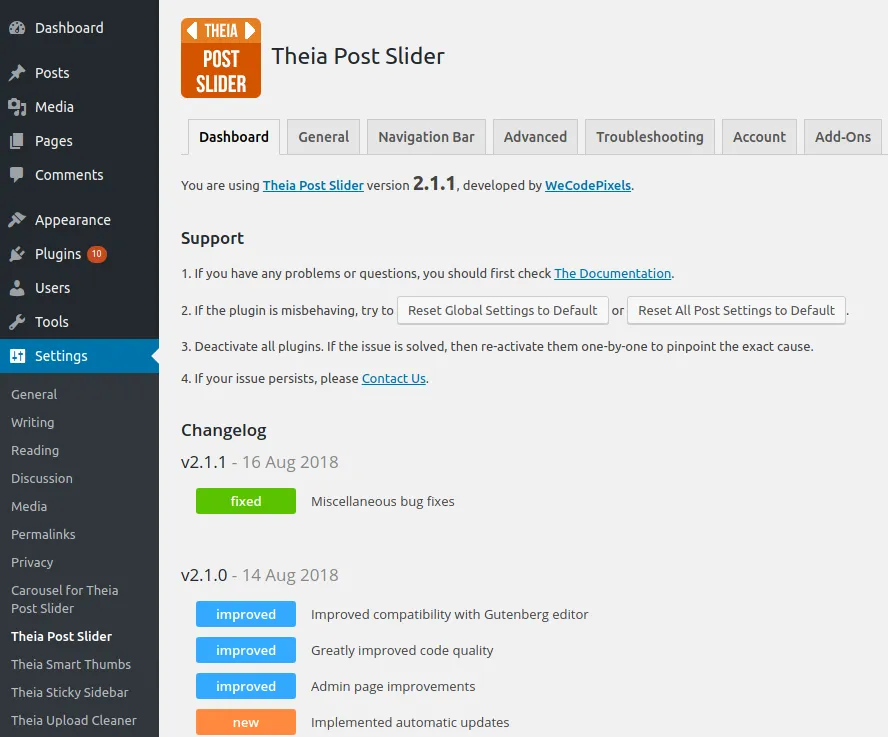
You can change certain aspects of the plugin by opening the Settings -> Theia Post Slider page in the admin panel. You can
instantly view the changes in the Live Preview section. The following settings are available:
This sets the slider’s visual theme, mainly the previous and next buttons.
Transition effect
Section titled “Transition effect”The animation effect used when moving from one slide to the other. There are 4 available effects: slide, fade, basic and
none.
Transition duration (ms)
Section titled “Transition duration (ms)”This sets the duration in milliseconds of the transition effect.
Navigation text
Section titled “Navigation text”Between the previous and next buttons there is a text displaying the current and total number of slides. Here you can customize
this text using the following variables: %{currentSlide} and %{totalSlides}.
Some examples:
| Navigation text | Result |
|---|---|
| %{currentSlide} of %{totalSlides} | 2 of 5 |
| This is slide %{currentSlide} of %{totalSlides} | This is slide 2 of 5 |
| %{currentSlide} / %{totalSlides} | 2 / 5 |
Previous button text
Section titled “Previous button text”The text that will be display on the “previous” button. Note that it works only on certain themes.
Next button text
Section titled “Next button text”The text that will be display on the “next” button. Note that it works only on certain themes.
Button width (px)
Section titled “Button width (px)”The width of the navigation buttons. Use this if you want both buttons to have the same width. Insert 0 for no fixed width.
Note that it works only on certain themes.
Button behavior
Section titled “Button behavior”-
Enable slider on pages
By default, the slider is enabled only on posts. This will enable it also on pages. Note that some themes may be incompatible with this option.
-
Enable additional post navigation
By default, the slider is used only for navigation between a post’s pages. If a post has just one page, the slider is not displayed. By enabling this option, the slider will appear on all posts and can be used to navigate not only between pages, but also between different posts.
If enabled, clicking the “previous” button on the first slide will open the previous post, and clicking the “next” button on the last slide will open the next post.
Refresh on every slide
Section titled “Refresh on every slide”A common use-case is to make the slider refresh the entire page on every slide. You can easily do this using the following settings:
- Go to
Settings -> Theia Post Slider -> Advanced. - Enable
Refresh ads when navigating to another slide. - Set
Refresh ads every N slideto1. - Enable
Refresh ads by refreshing the entire page.
Default themes
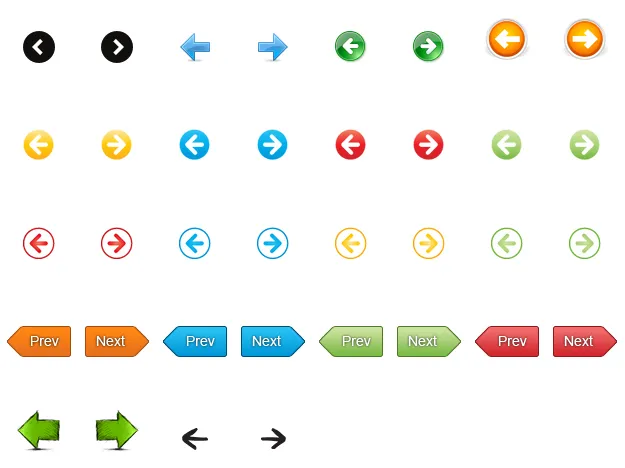
Section titled “Default themes”Theia Post Slider comes with over 200 different themes. Many of them are vector icons and support any custom color or size. They can be found in the “Settings -> Theia Post Slider” page in the admin panel.
Here is a showcase of some of the themes: