
Carousel
Settings
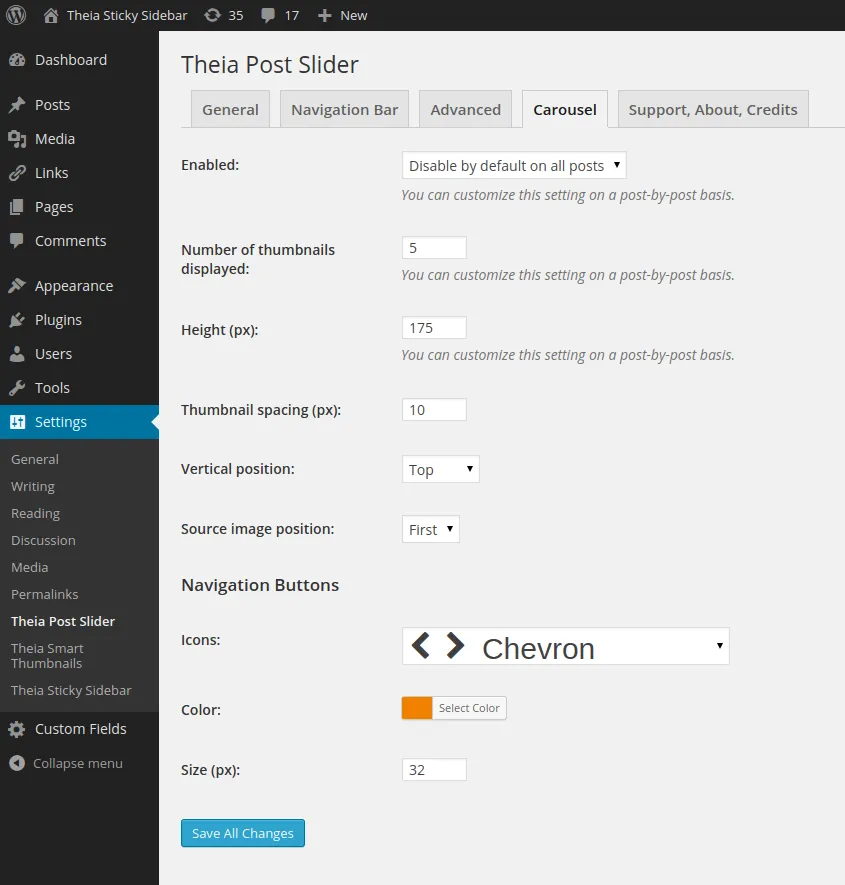
Section titled “Settings”You can change certain aspects of the carousel by opening the Settings -> Theia Post Slider page in the admin panel, and then navigating to the Carousel tab. The following settings are available:
-
Enabled
This is the global setting for enabling or disabling the carousel. This can also be set on a post-by-post basis.
-
Number of thumbnails displayed
The number of slide thumbnails displayed at the same time. The rest of the thumbnails cand be viewed by scrolling the carousel. This can also be set on a post-by-post basis.
-
Height (px)
The carousel’s height. This will not stretch the thumbnails, since they are displayed using a best fit approach. This can also be set on a post-by-post basis.
-
Thumbnail spacing (px)
Sets the gap between thumbnails.
-
Vertical position
The carousel can be displayed either above the post or below.
-
Source image position
The plugin needs to extract a thumbnail image from each slide/page. This can be either the first or the last image found. You can also choose a custom thumbnail on a slide-by-slide basis.
-
Navigation Buttons
Here you can customize the carousel’s previous and next buttons. You can match these settings with the ones from the main Theia Post Slider plugin, or choose something different.
Post Settings
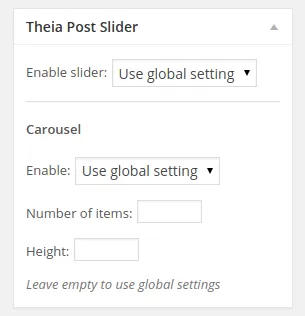
Section titled “Post Settings”Some settings can be changed on a post-by-post basis.
-
Enabled
Either use the global setting, or forcefully enable or disable the carousel.
-
Number of thumbnails displayed
Override the number of slide thumbnails that are displayed at the same time. Leave blank to use the global setting.
-
Height (px)
Override the carousel’s height. Leave blank to use the global setting.
Custom Thumbnails
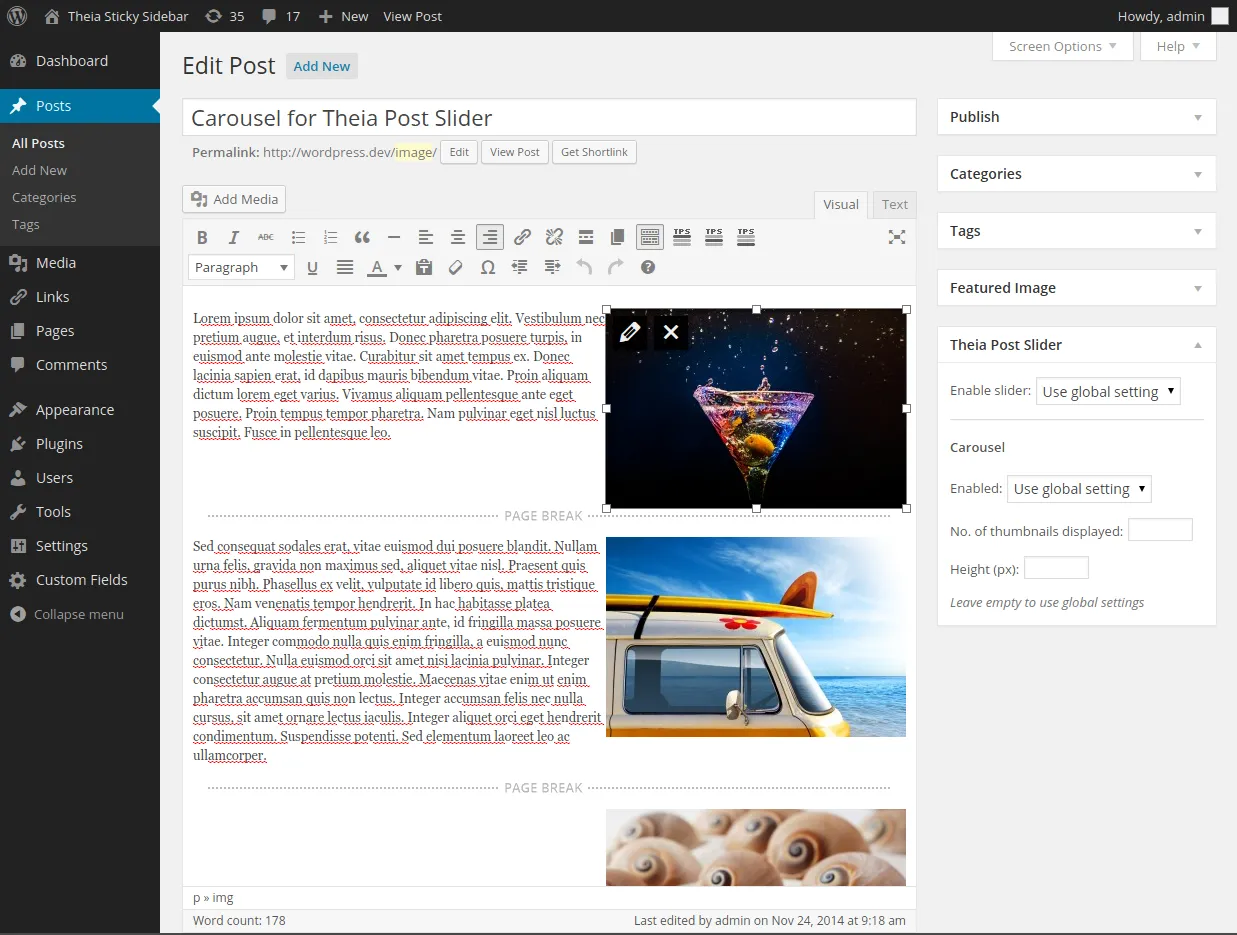
Section titled “Custom Thumbnails”Usually, a slide’s thumbnail is the first or last image found in that particular slide, depending on what settings you are using. However, in case you have multiple images in your slides, you can override this setting by adding the custom class cftps-featured on the image you want to use as thumbnail.
First, inside the post editor, click on the image you want to use. Then click on the edit button that has a pencil icon.
Second, add cftps-featured inside the Image CSS Class field. If you need to have multiple CSS classes, you can separate them using spaces.
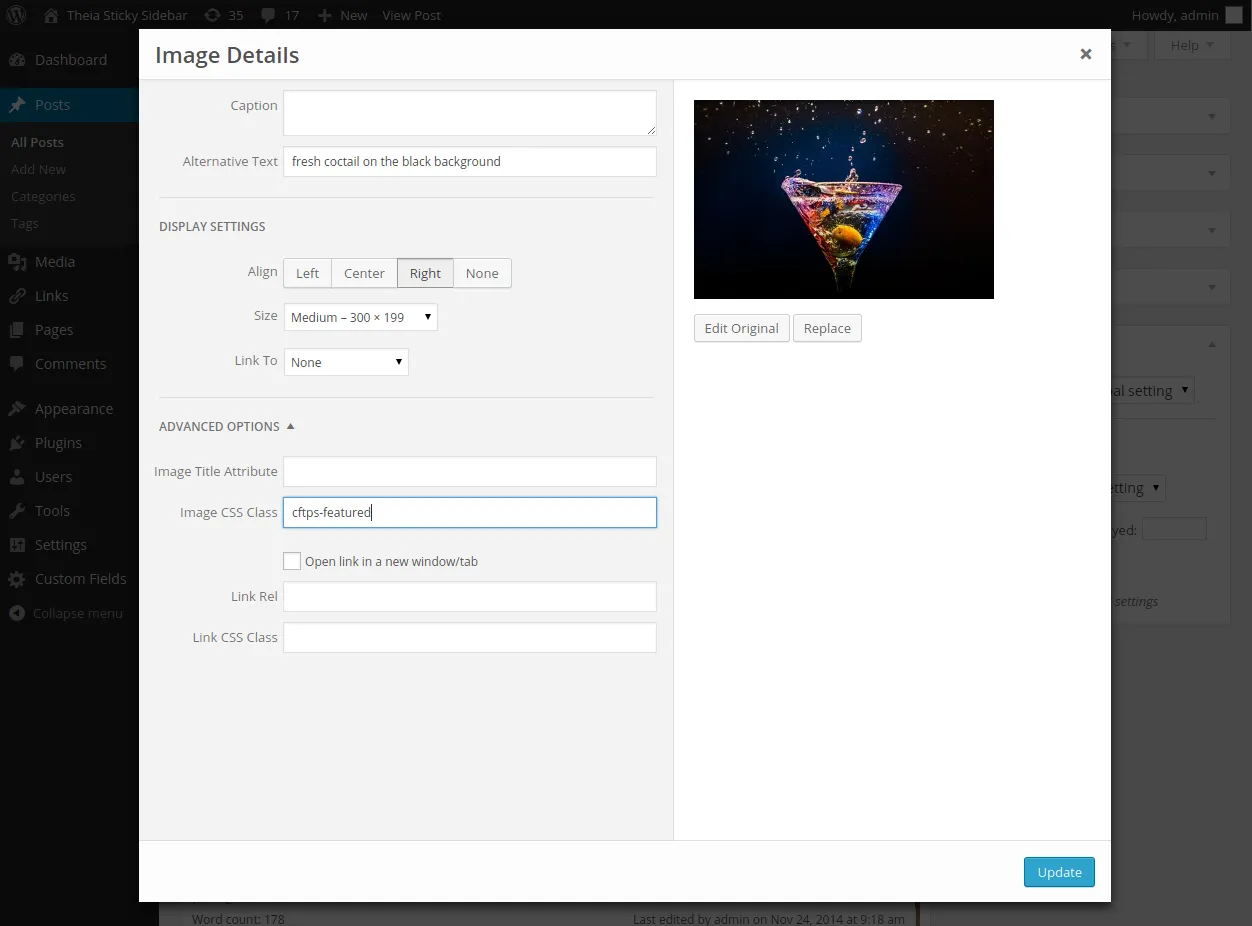
Finally, click on Update inside the Image Details window, and again Update to save the changes to your post.