
Configuration
After installing and activating the plugin, you should open your homepage and check if the plugin works out-of-the-box. Just scroll down and see if the sidebar remains permanently visible. If it doesn’t, you should follow these next steps.
What we need to do is tell the plugin exactly what HTML element represents the sidebar. For that we’re going to use Google Chrome, which is available on all major platforms (Windows, Mac OS and Linux). We’re going to use the default WordPress Twenty Twelve theme as an example.
-
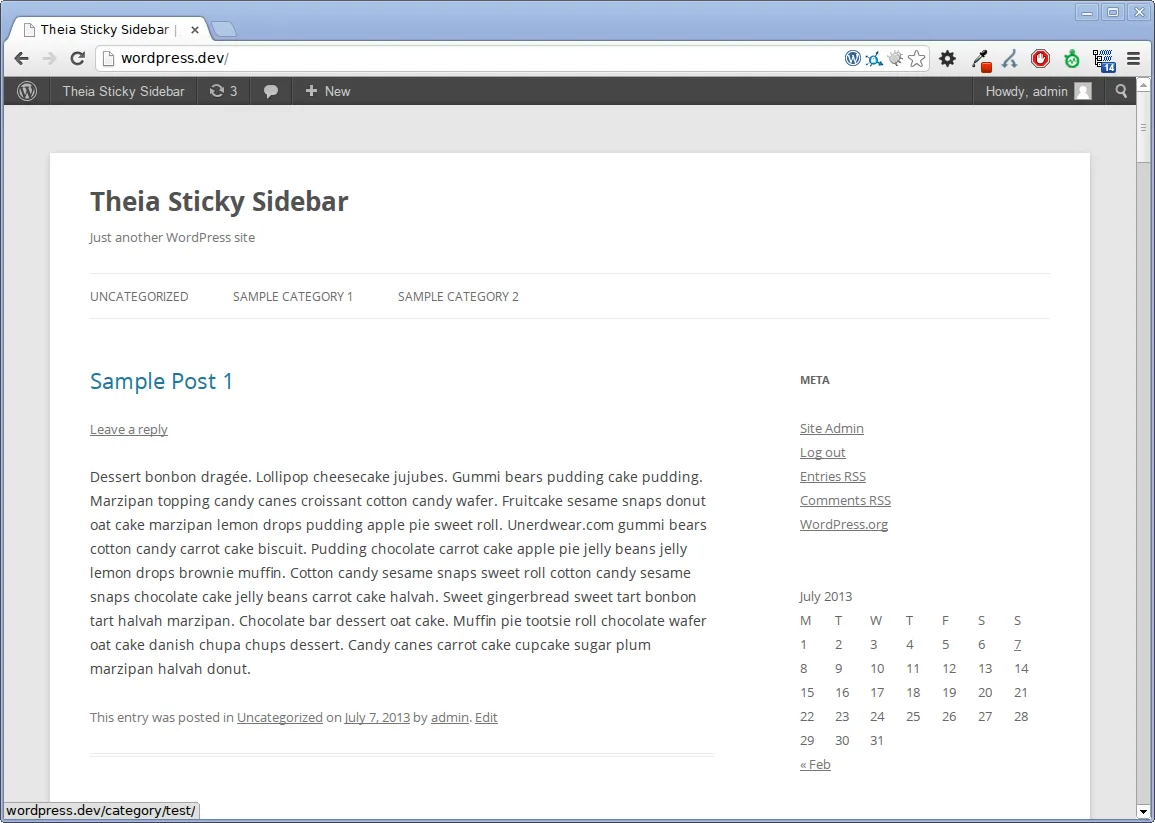
First, open your homepage in Google Chrome. It should look something like this:
-
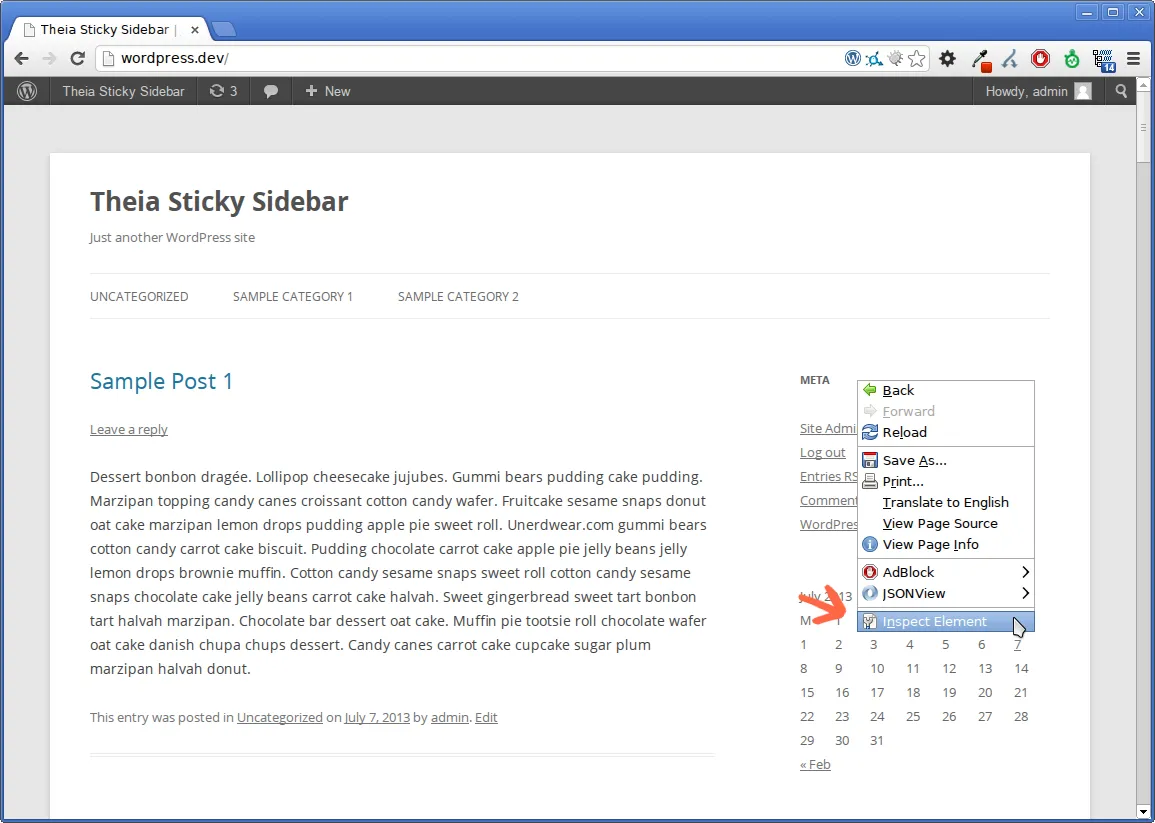
Now locate the sidebar and right-click on it. A menu should pop-up. Select “Inspect Element”.
-
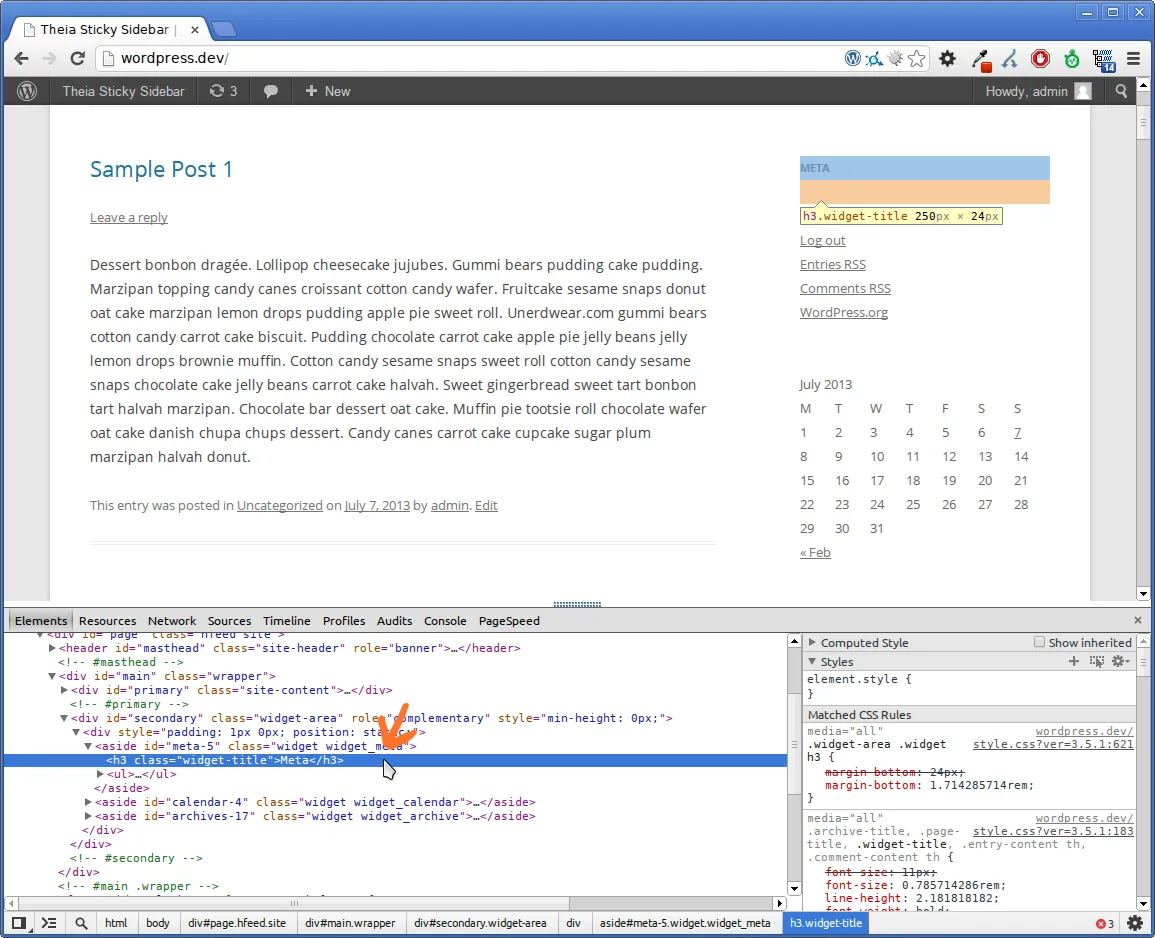
The Developer Tools should now be displayed on the bottom, and the element you’ve right-clicked on should be selected. In this case, we’ve selected the sidebar’s “Meta” heading.
-
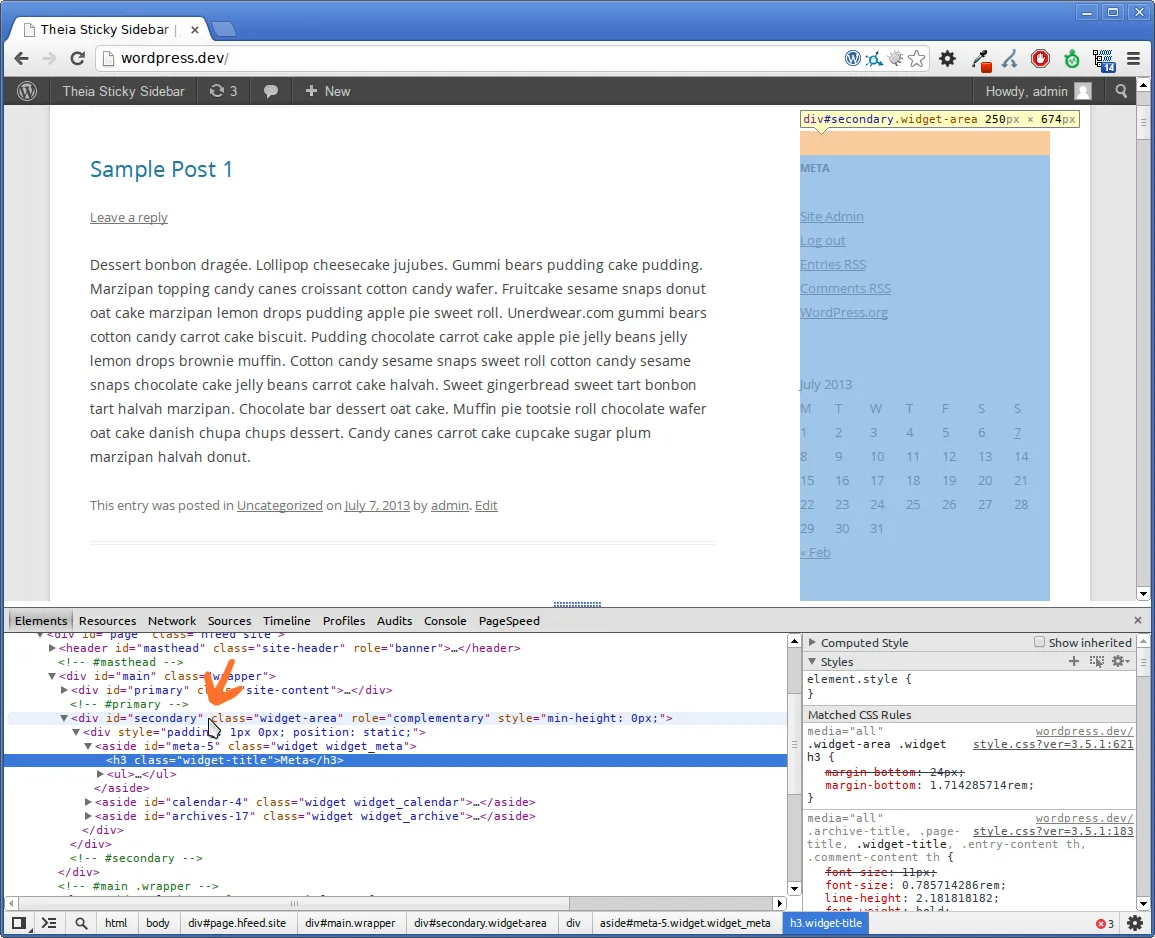
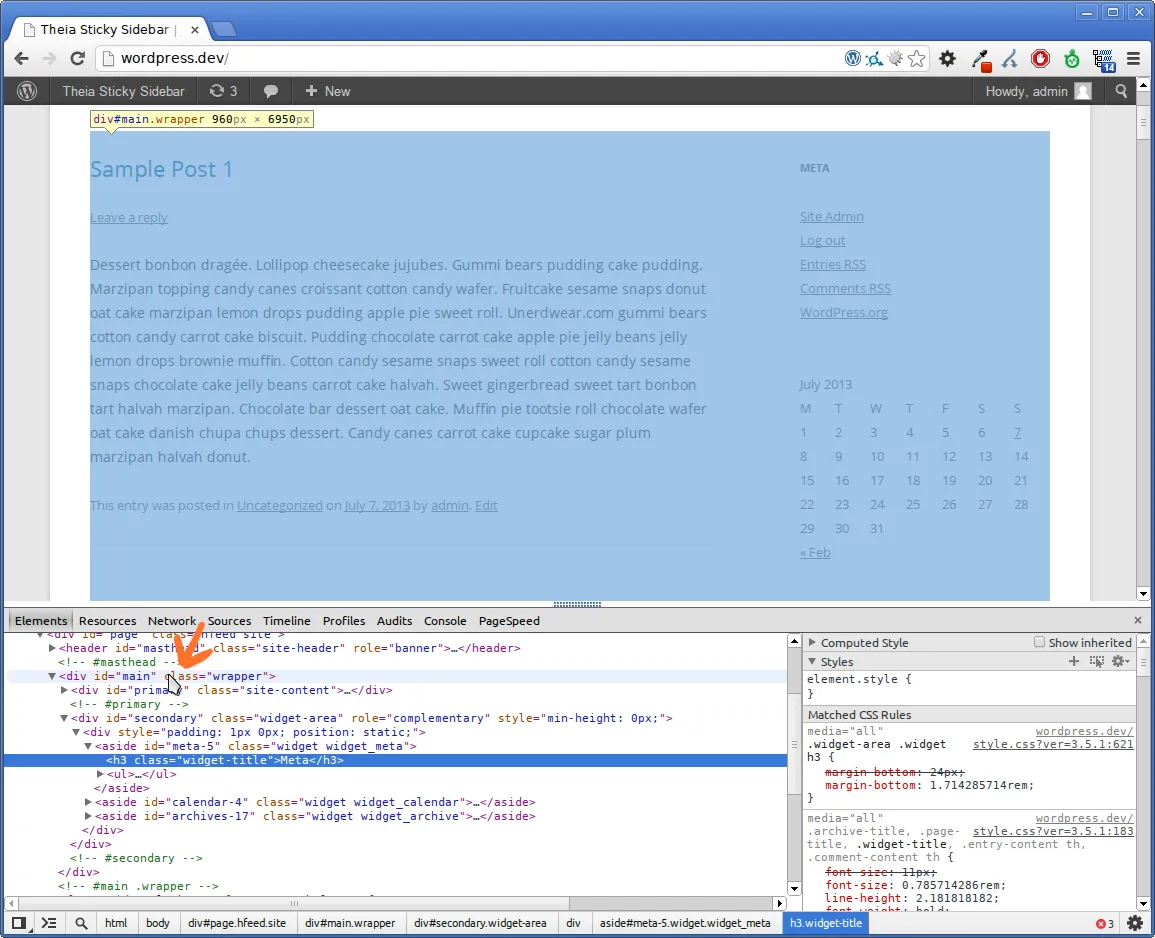
In the Developer Tools from the bottom of the window, search upwards for the sidebar element by moving your mouse. The elements you’re hovering over will be highlighted. Search for the first parent element that highlights the entire sidebar. It usually has the ID or class name of “sidebar”, “sidebar-right”, “secondary”, etc..
In this example, the sidebar has the ID of “secondary”. To identify it, we can use the “#secondary” selector (notice the “#” in front of it, meaning this is an “ID”). If this sidebar didn’t have an ID, we could have used it’s “widget-area” class to identify it, like so: “.widget-area” (notice the “.” in front of it, meaning this is a “class”).
-
Now we must do the same thing to locate the container of the page. This is the first parent element that contains both the sidebar and the actual content of the site. It usually has the ID or class name of “main”, “main-container”, etc.. In this example, we’re going to use the “#main” selector to identify it.
-
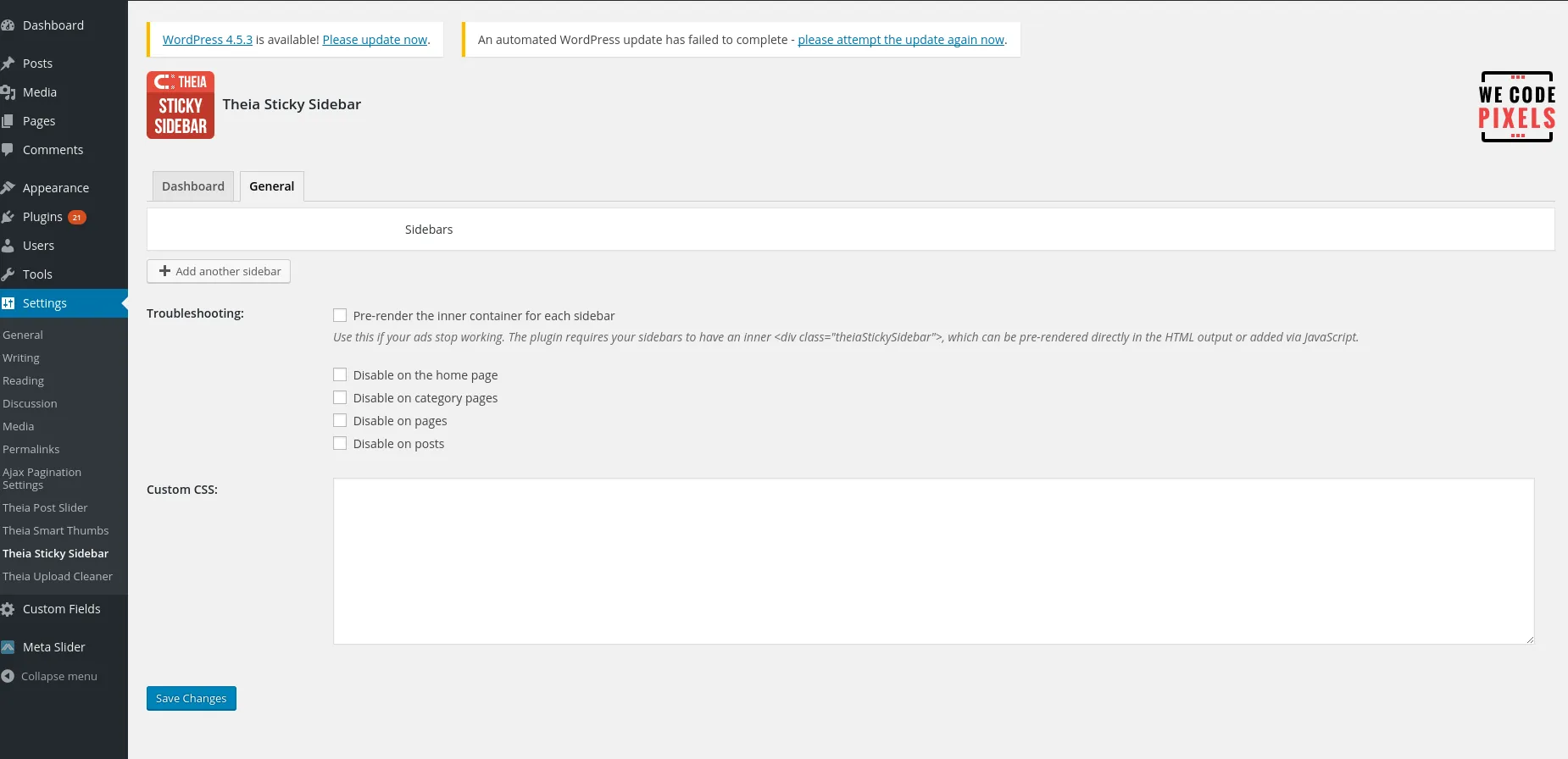
Open the plugin’s settings page -> General tab from the administration panel and click on the ‘Add another sidebar’ button.
-
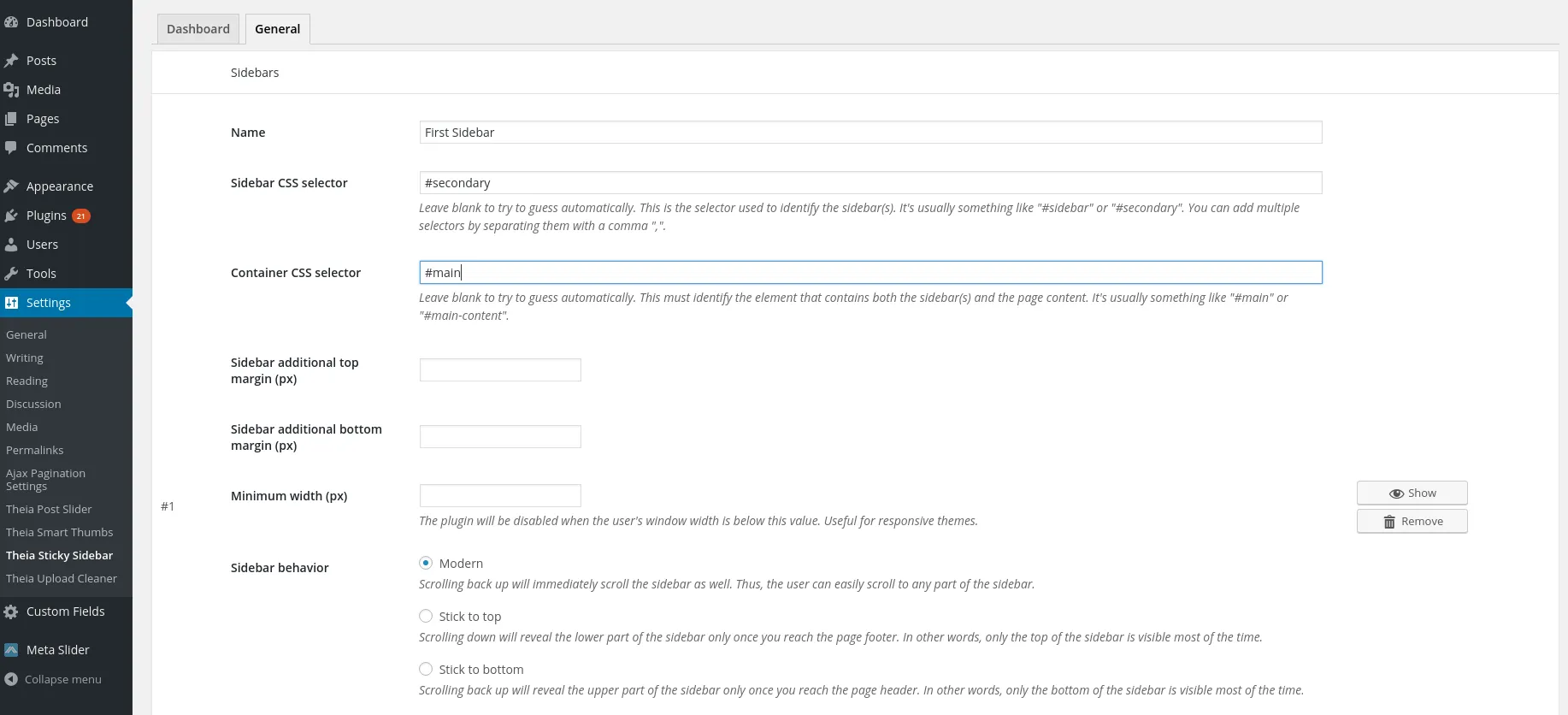
Finally enter the “Sidebar CSS selector” and the “Container CSS selector”. In this case, we have “#secondary” and “#main”.
Note that if you have any issues, you can send me an email with your website address and I’ll find these selectors for you.